Choosing a business server is less about buying the most powerful machine and more about matching hardware to daily work. A Laptop Server may suit a small team that needs a temporary file share, a local test environment, or occasional access to business records. Picture a shop office with five staff, a compact laptop, and a shared folder used between appointments. That setup may be practical, but it depends on workload, security settings, and reliable backups. A laptop is not automatically a dependable replacement for a dedicated server.
This guide compares common server types for business buyers in 2026, including tower, rack, cloud, and laptop-based options. It looks at capacity, expansion, maintenance, power use, and support—not just processor speed. These details matter when storage fills up, several employees connect at once, or a device must remain available after office hours. Check each manufacturer’s specifications and warranty terms before purchase, since product limits vary. Keep a recovery plan, too.
Small needs are still real needs. Yet the cheapest option can become costly if it cannot grow with the business. A laptop may offer portability and a lower entry cost, while dedicated hardware can provide more room for drives, cooling, and upgrades. There is no perfect choice. Some teams may also discover that their actual bottleneck is an internet connection or poor backup routine, not the server itself. The sections ahead offer a practical way to compare trade-offs and identify a setup that fits your team today without ignoring tomorrow’s needs.
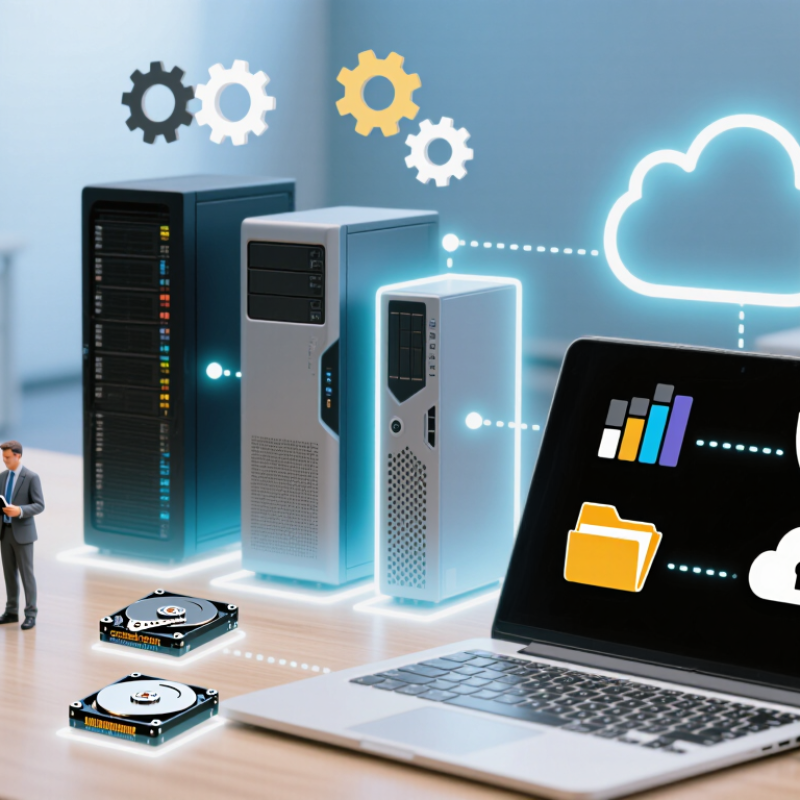
A “laptop server” is not a standard server category. It usually means a laptop configured to provide shared files, run a small business application, or support a temporary workgroup. Think of a service counter laptop sending inventory data to a few nearby devices. It can be practical for light, local tasks. It is not automatically a dependable substitute for dedicated server hardware.
The distinction matters because laptops are designed for mobile use, not continuous operation. Heat can build around blocked vents, and closing the lid may trigger sleep settings. A single battery, drive, or power adapter can also become a single point of failure. Uptime Institute’s 2024 Global Data Center Survey reported that 55% of respondents had experienced an outage in the previous three years. That figure concerns surveyed data-center operators, not laptop servers, but it underscores why availability needs deliberate planning. I would be cautious about treating a convenient setup as resilient infrastructure.
Tips: For a small pilot, disable sleep during approved operating hours, keep vents clear, and test recovery from a power loss. Schedule encrypted backups to a separate device or service. Record who can access the laptop and check that updates do not interrupt business hours. If downtime would stop sales or essential operations, choose equipment and support designed for continuous service.

A business laptop can serve as a small, temporary server when workload and user numbers are limited. It can share project folders across a small office, host a test website, or run a lightweight database for an internal tool. A laptop can also manage print queues or hold a local backup copy for a few nearby devices. The roles are modest. For example, a team might leave one machine connected to power and Ethernet in a locked cabinet, then share a folder with defined access permissions. Avoid treating it as a permanent production server: sleep settings, heat, battery wear, and wireless interruptions can disrupt service.
Security and recovery need attention, even for a simple setup. Verizon’s 2024 Data Breach Investigations Report found that 68% of breaches involved a non-malicious human element. That makes careful account permissions and staff habits important. IBM’s 2024 Cost of a Data Breach Report put the global average breach cost at $4.88 million; this figure is not a forecast for a small business, but it underscores the stakes of weak controls. Keep the system updated, encrypt sensitive files, and test a separate backup by restoring a sample file. Convenient, but fragile. A laptop server suits limited, low-risk tasks; critical services need dependable power, monitoring, and recovery plans.
| Server Role | Typical Business Use | Practical Workload | Key Requirements | Suitability | Important Limitations |
|---|---|---|---|---|---|
| Development and test server | Host a test website, application, or isolated development environment. | One or a few developers; non-production workloads. | Enough memory for the application and test tools; wired network access is helpful. | Well suited | Keep test data separate from live business data. A laptop is not a reliable production host. |
| Small internal web server | Serve a simple internal site, dashboard, or lightweight business application. | Low traffic on a trusted local network. | Web-server software, a stable network connection, and appropriate access controls. | Suitable for limited use | Use a managed server or cloud service for public-facing sites, high availability, or sensitive workloads. |
| File-sharing server | Share working files with a small team on a local network. | Small, occasional transfers; modest concurrent access. | Shared-folder permissions, storage capacity, and a wired connection where possible. | Suitable for temporary or small-scale use | Do not treat the laptop’s internal drive as the only copy. Plan backups and access permissions. |
| Print server | Coordinate access to a network-connected or locally attached printer. | Low-volume printing for a small office. | Printer drivers, a stable connection, and settings that prevent sleep while the service is needed. | Well suited for a small office | Printing may stop when the laptop is asleep, shut down, disconnected, or undergoing updates. |
| Backup staging server | Temporarily collect backup files before copying them to separate storage. | Scheduled transfers from a small number of devices. | Adequate free storage, restricted access, and an automated copy to a separate backup destination. | Suitable as an intermediate step | A laptop alone is not a complete backup strategy. Keep at least one additional, separate copy. |
| Monitoring and log collection server | Collect basic device status, application logs, or test-environment metrics. | Small environments with modest data volume. | Storage monitoring, limited access, and routine log retention and cleanup. | Suitable for small environments | Continuous monitoring needs a host that stays powered on and connected; protect logs that may contain sensitive data. |
| Local database for testing | Run a database for software development, demonstrations, or non-critical records. | Light queries and a small number of users. | Sufficient memory and storage; database permissions and regular backups. | Suitable for testing or demos | For business-critical databases or concurrent production users, use a properly managed server environment. |
| DNS or DHCP service | Provide name-resolution or address-assignment services in a controlled lab network. | Testing and isolated network setups. | Careful network configuration and authorization from the network administrator. | Generally avoid on a business production network | Incorrect settings can disrupt network access. These services should normally be managed centrally. |
| Always-on public production server | Serve a public business website, customer application, or critical company service. | Requires dependable uptime, security maintenance, and recovery planning. | Purpose-built hosting, monitored availability, managed security, and tested backups. | Not recommended | Laptop sleep, battery limits, heat, changing networks, and hardware failure make dependable production service difficult. |
For 2026 business buyers, a laptop server is best treated as a portable edge node, test host, or backup tool—not a silent replacement for a rack server. Choose hardware around the workload. A business-class notebook with 16–32 GB of memory can handle light file sharing, development, or monitoring. Add an NVMe drive for fast local access, and use wired Ethernet where stable connections matter. For continuous service, check cooling, battery behavior, and remote recovery options. Small details matter: a laptop fan blocked by a stack of papers can turn a reliable test into a slow one.
Operating system choice should follow the software stack and the team’s skills. Linux suits many web, container, and automation workloads; Windows can simplify compatibility with Windows-based applications and management tools. Flexera’s 2024 State of the Cloud Report found that 89% of organizations use a multi-cloud strategy, making consistent deployment environments valuable. A laptop server should therefore mirror the target environment where possible, rather than introduce a one-off setup. Keep security updates enabled, restrict administrative access, and test backups before relying on the machine.
Hardware specifications can be misleading. A thin model may look powerful on paper, yet sustained workloads can trigger heat-related slowdowns. Gartner forecast 114 million AI PCs for 2025, but specialized AI capability does not automatically make a laptop suitable for nonstop service. Check sustained performance, ports, storage expandability, and warranty terms. I would still avoid hosting a critical business service on a laptop alone; portability is useful, but it is not redundancy.
Typical RAM planning baselines for small-business laptop server roles. These are practical estimates, not universal minimums; actual needs depend on workload, user count, and software.
How to read this chart: File and print, web and application, database, virtualization, and backup roles are shown with representative memory baselines. Virtualization generally calls for more RAM because one machine may run multiple virtual systems. Choose a supported server operating system that fits your applications and administration needs.
Choosing a laptop server type starts with the workload, not the processor label. A compact business laptop can handle light file sharing, testing, or a temporary development environment. For several users editing large files, prioritize memory, fast solid-state storage, and a wired network connection. A thin model may look efficient on a desk, but sustained workloads can expose its cooling limits.
Keep the role narrow. For remote access or small internal tools, favor reliable networking and manageable power settings. For data analysis or virtual machines, choose more memory and a processor designed for sustained work. Check storage capacity and backup options before purchase; one fast drive is not a backup. A laptop’s built-in screen and battery are useful during setup, but they do not make it a dependable substitute for dedicated server equipment.
Match expected demand to real operating conditions. Estimate simultaneous users, file sizes, and hours of continuous operation, then test a representative workload before rollout. A short benchmark can miss heat-related slowdowns. Also consider physical security, ventilation, and recovery after a power interruption. The awkward part: business needs often grow faster than forecasts. Leave some capacity, but avoid paying for performance the workload will never use.
Business buyers should compare tower, rack, and edge servers by workload, not appearance. A compact edge unit near a shop floor may reduce network delay, while rack systems can simplify centralized maintenance. Security and lifecycle costs often matter more than purchase price. Verizon’s 2024 Data Breach Investigations Report found that 68% of breaches involved a human element, excluding malicious insiders. That makes individual accounts, multifactor authentication, and timely patching practical buying criteria. No magic fix.
Reliability calls for measurable safeguards: redundant power, tested backups, replaceable drives, and clear support terms. Uptime Institute’s 2024 outage analysis reported that 54% of respondents’ most recent significant outages cost more than $100,000. IBM’s 2024 Cost of a Data Breach Report put the global average breach cost at $4.88 million. These figures are not a forecast for every small firm, but they show why downtime and recovery deserve budget lines. Confirm firmware support duration, spare-part availability, warranty response times, and a migration path before buying. A checklist can still miss real-world friction.
Tips: Keep a dated asset register, test restores quarterly, and record who approves updates. Compare five-year ownership costs, including power, support, replacement drives, and secure disposal. If one person alone knows the setup, document recovery steps before they take leave.